Release highlights

See also the full changelog for the nitty gritty.
Running a beta? See the beta release highlights.
Follow releases with the RSS feed.

Date & Time 1.0
24 Oct 2026

NEW: A plugin to paste the current date and time, in the format of your own choosing, wherever you are typing.

Paste the date and time

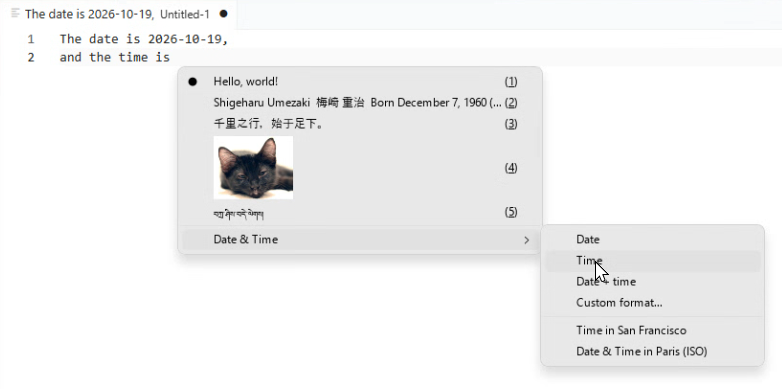
Pick Date & Time in the paste menu to paste the date, the time, or both. Custom format... lets you choose every option for one paste, with a live preview.

The Date & Time submenu in the paste menu

Your formats, your time zones

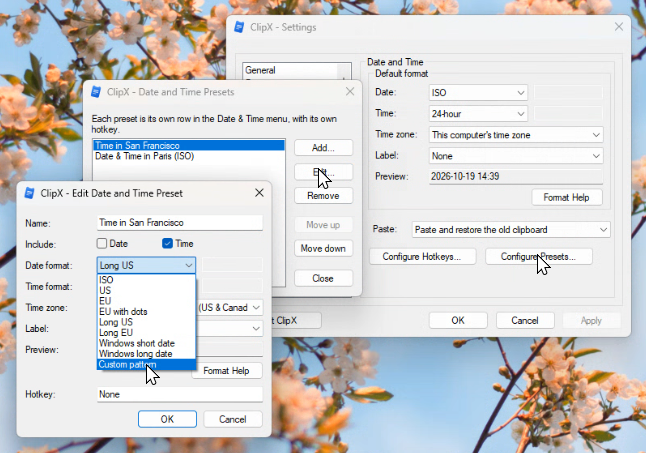
Choose ISO, US, European or long formats, your Windows formats, or write your own pattern. Pick any time zone, and label it with its UTC offset or its name. Save the ones you use most as presets: each one gets its own row in the menu and its own hotkey.

Editing a preset on the settings page

ClipX 2.0.1.0
18 Oct 2026

Transform clipboard content

Plugins can now add Transforms: tools that take a clipboard item, text or image, and turn it into something new that you paste directly into your app or copy as a new clipboard. For instance, Snip's Crop & Annotate opens any copied image in its editor to make the same edit you could during a Snip capture.
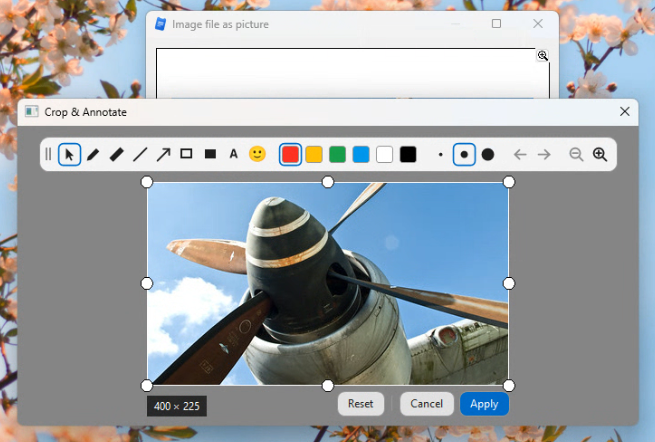
Crop and annotate a copied image

The newly available transform plugins cover many common needs: Transforming pure text (for writing and coding), images, colors, files, working with Markdown and HTML formatted text, encoding Data URIs, making and scanning QR codes, extracting text from images with OCR, and even applying custom regex-based transformations for making your own complex substitution rules.

Pinned previews

Pin any clipboard item or sticky in its own window, to keep it in view while you work. Pinned windows can stay on top, snap to each other and move together (hold the Ctrl key), and they keep their content even after it leaves your history, until the Pin is closed
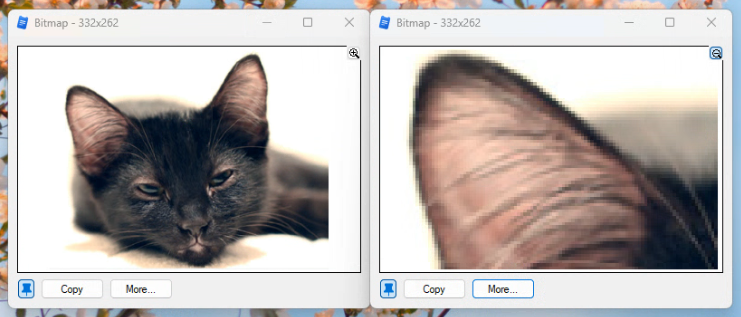
A pinned preview window

Manage items right from the menu

Right-click any history item for its own menu: pin, transform, delete, or run a plugin action such as Save As. The menu stays open for management actions (e.g.: deletions), so you can handle several items in a row.
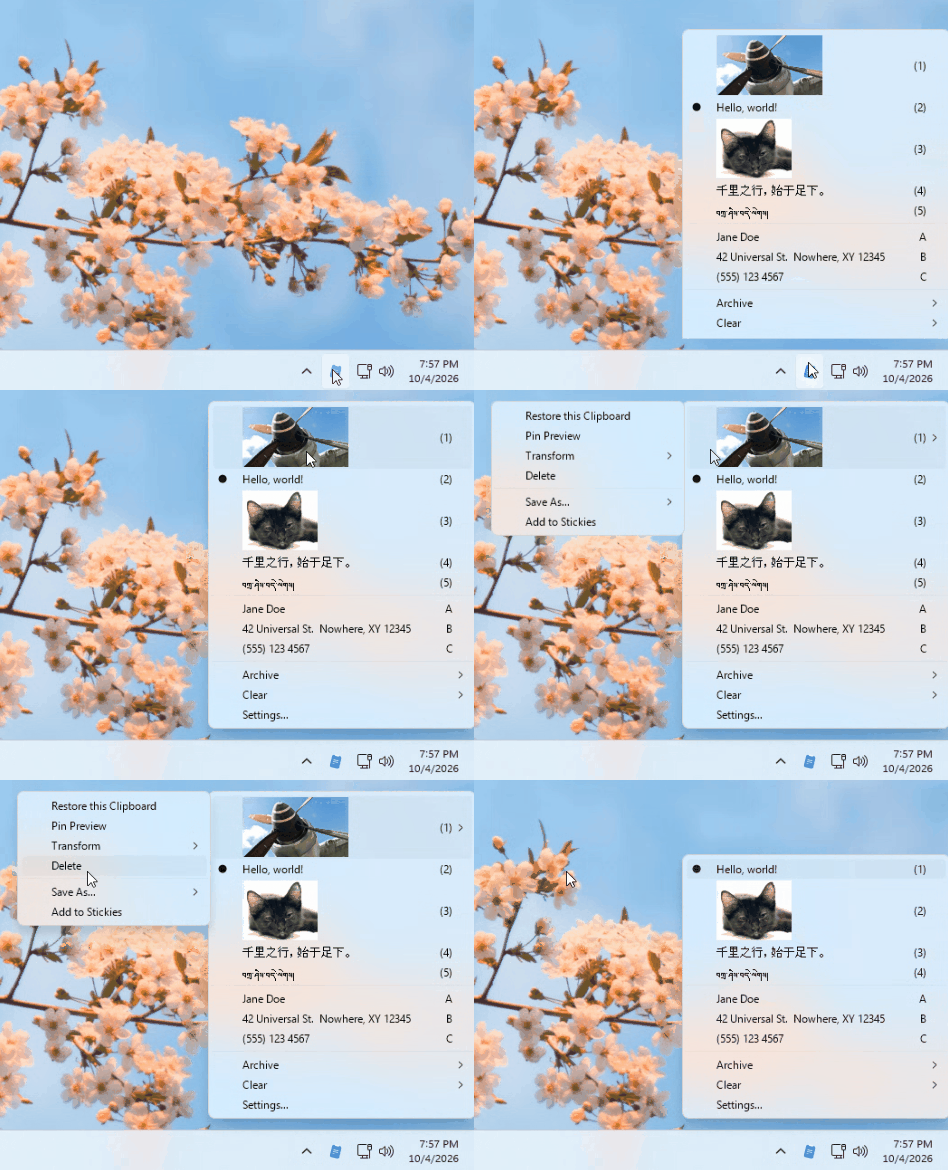
Deleting an item from the menu

Drag and drop in menus

Reorder your history, copy items to your Stickies, or copy them from a shared peer's history, by dragging them.

Drag and drop in menus

Choose what ClipX records

You can now tune ClipX's recording fidelity vs performances. Pick one of three modes:

  • A basic mode like ClipX 1.x. Only recommended on very slow machines, or if you never care about image transparency and formatted text.
  • A curated set of useful facets. This is the new default, it is the best mix of fucntionality vs performance and resource usage. You can add custom additional formats based on a clipbard produced by your favorite app.
  • A rich set of facets with your own rules. This preserve most fidelity and handles unknown clipboard formats, but uses more storage and memory. You can exclude formats you never want, and create precedence rules for format families you know. Comes with a pre-configured set of well known families and exclusions.
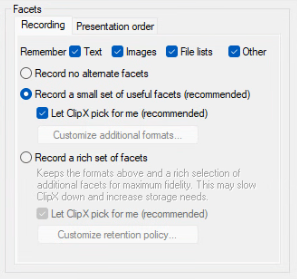
The recording modes on the Formats settings page

Undo Clear Current

Cleared the clipboard by mistake? You can now undo.
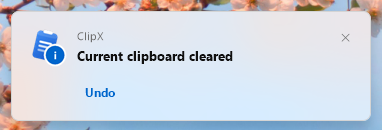
Undo Clear Current

Encrypted exports

Export your history or your Stickies as an encrypted archive.
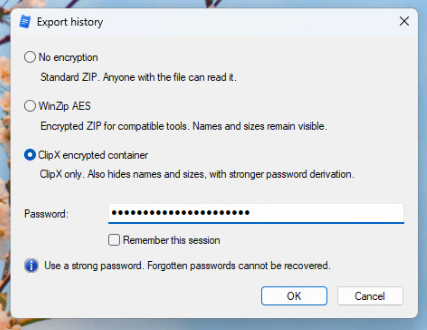
Encrypt exports

Compact menus on Windows 11

The compact layout fits more of your history on screen, and is now the default for new installations. Change it on the Settings > Theme page.
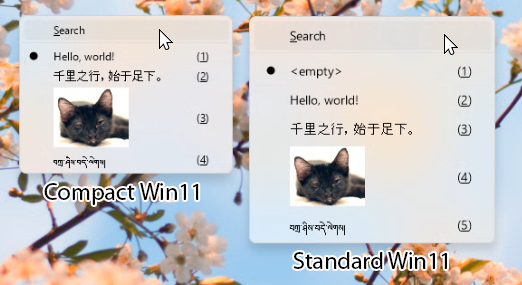
Compact and standard Windows 11 menus

More control over sensitive content

Choose which kinds of sensitive content ClipX detects, and turn off the reminder that detection is disabled (this needs administrator rights, so that malware cannot do it).
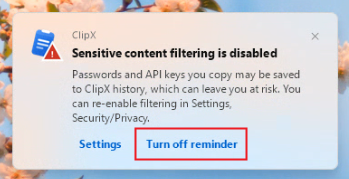
Turning off the reminder

New plugins

Find them in Settings > More Plugins...:

  • Characters: pick any character, from accented letters and symbols to emoji, and paste it where you are typing.
  • Transform Text, Transform Images, Transform Code, Transform To Data URIs, Transform With Regex, Transform OCR, Transform Colors, Transform Files, Transform Markdown and Transform QR.
Characters 1.0
18 Oct 2026

NEW: pick any character, from accented letters and symbols to emoji, and paste it where you are typing, in the format you need.

Find any character

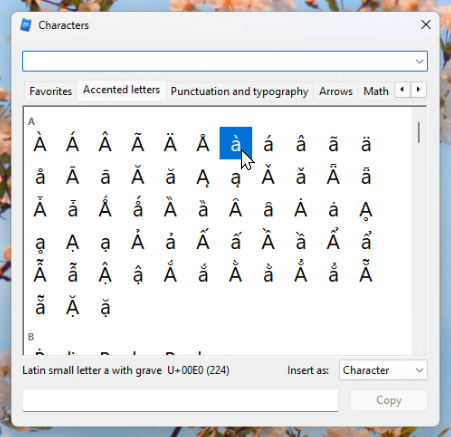
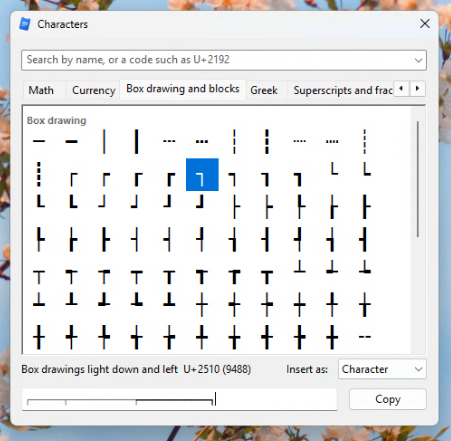
Open the picker from the paste menu or with a hotkey, then search by name, keyword or code, or browse by topic.

The Characters picker

Paste one, or several at once

Click a character to collect it, then paste everything you collected together. Hold Ctrl while you click to paste a character right away.

Collecting several characters

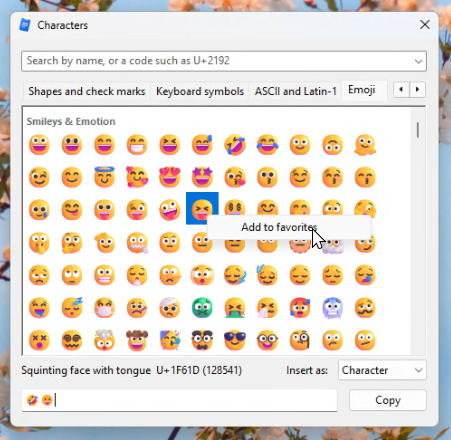
Emoji in color

Emoji show in color on Windows 8.1 and later.

Color emoji in the picker

Do more with Characters

  • Favorites: right-click a character to add it to your favorites.
  • Insert as: paste a character's code instead, such as U+2192, → or \u2192.
  • Copy: open Characters... from the tray menu as a window that stays open, to copy one character after another.
  • Paste: open Characters... from the history paste menu, to paste the character(s) directly into your app.
More Formats 1.1
18 Oct 2026

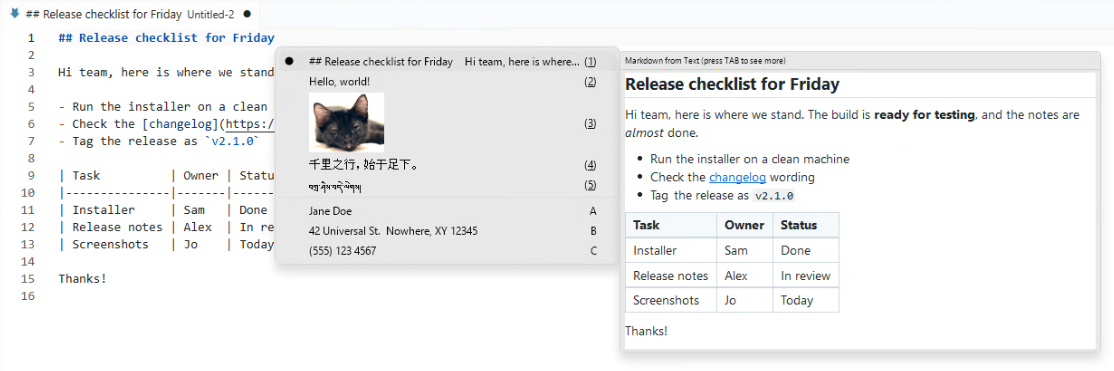
Copied Markdown now shows formatted

Copied text written in Markdown now shows formatted in previews. Press Tab to switch back to the plain text.

A Markdown preview

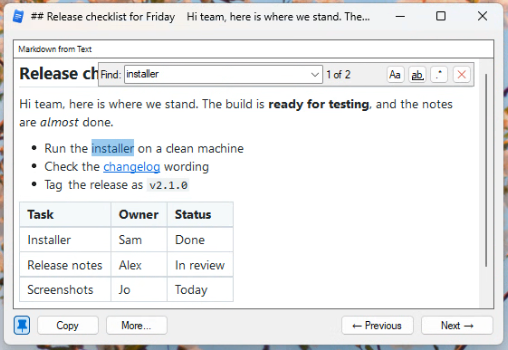
Scroll, search, select and copy in formatted previews

HTML, RTF and Markdown previews show in full, can be scrolled and resized in pinned windows, and support search, selection and copy.

Searching an HTML preview

Stickies 1.11
18 Oct 2026

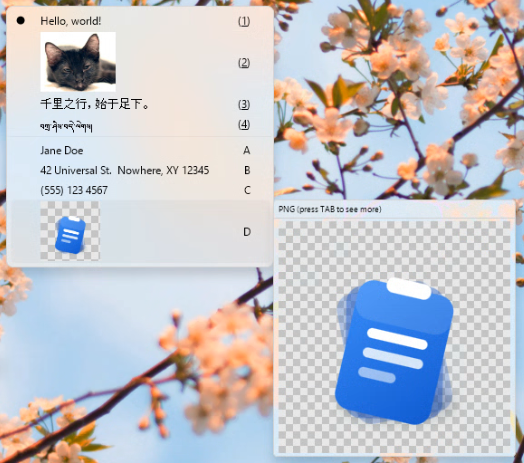
Keep any clipboard as a sticky

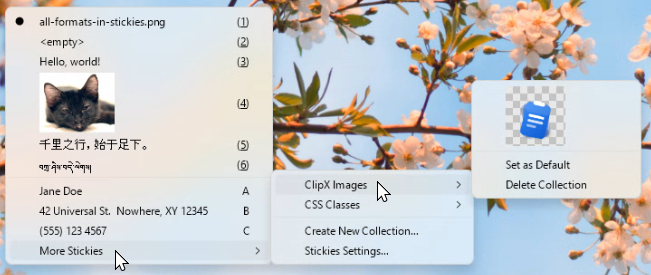
Stickies can now keep images, formatted text, files and any other clipboard content. Hover a sticky for its preview, or right-click it for its own menu, just like history items.

Stickies of every kind

Collections

Organize your stickies into collections, switch between them quickly, and drag stickies from one to another.

Stickies collections

Secure archives

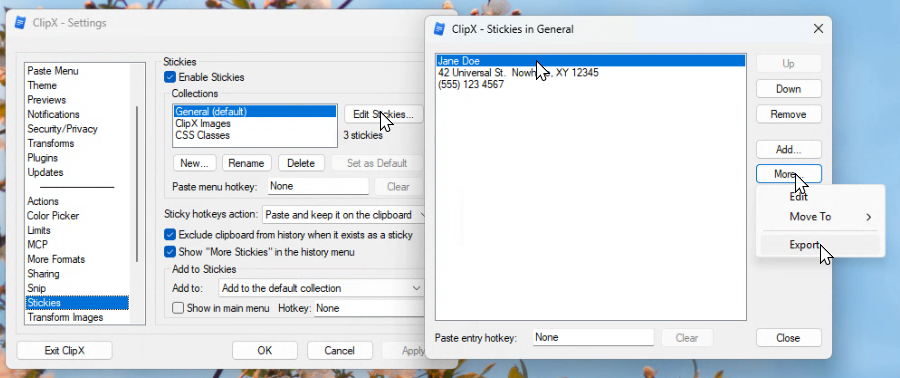
Save your collections as a ClipX archive, with the same encryption choices as history exports.

Exporting stickies

Transform Colors 1.0
18 Oct 2026

NEW: convert colors from one format to another.

Every color format

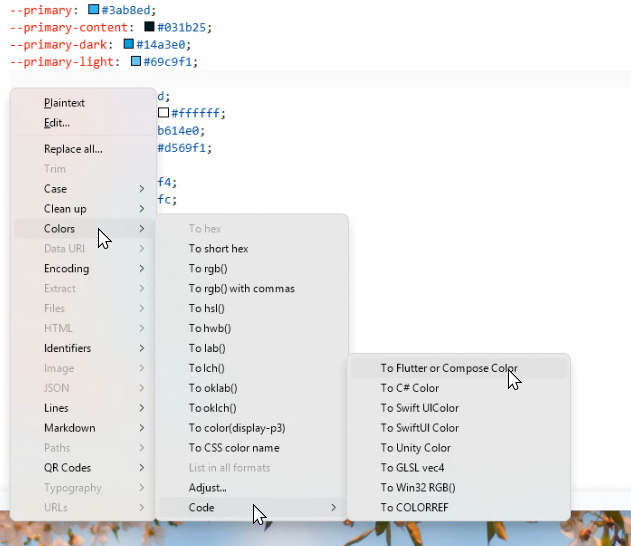
Copy a color in any format, such as `#6495ED`, then convert it to another: CSS formats from hex to oklch(), color names, or code for Flutter, C#, Swift, Unity, GLSL and Win32.

The Colors menu

Adjust many colors at once

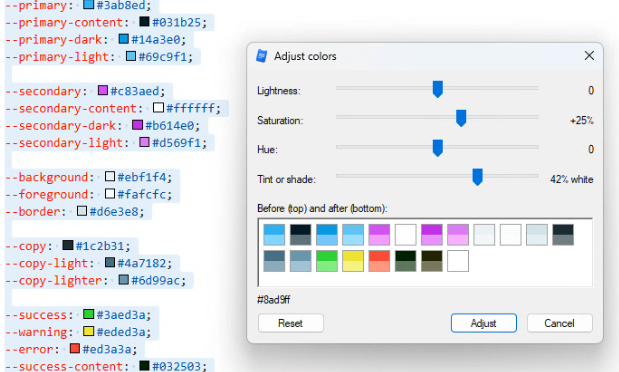
Copy text with many colors, such as a stylesheet, then choose Transform > Colors > Adjust... to change them all together.

Adjusting many colors at once

Transform Files 1.0
18 Oct 2026

NEW: transforms for files copied in Explorer, or file paths copied as text.

Turn a copied file into its content

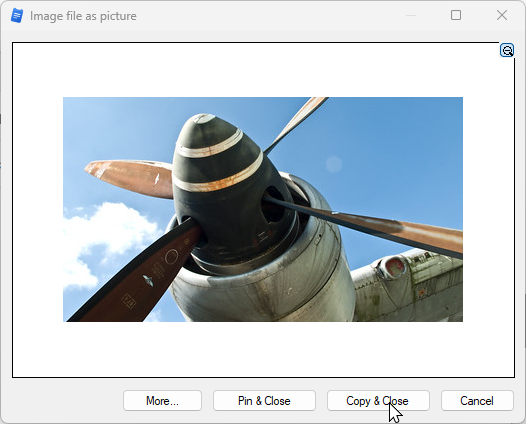
Copy a picture file in Explorer, then choose Transform > Files > Image file as picture to get the picture itself.

A copied picture file turned into the picture

Do more with your file clipboards

  • File contents, Markdown code blocks and Markdown links for one or more files.
  • Hashes: SHA-256, SHA-1, SHA-512 or MD5.
  • File info and Lists: folder trees, file tables, names, relative paths and total size.
  • Encode: Base64, or a data URI.

Paths copied as text can use a pattern, such as `C:\Notes\*.txt`, to take several files at once.

Transform Markdown 1.0
18 Oct 2026

NEW: work with Markdown text.

Paste Markdown as formatted text

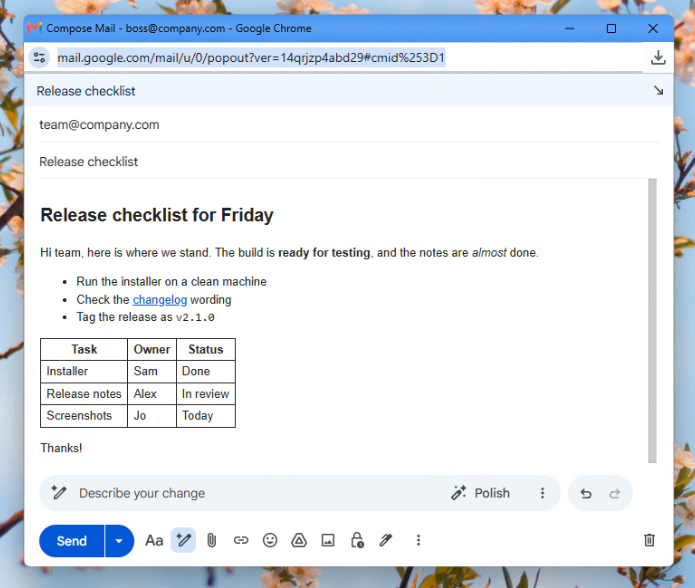
Copy Markdown, choose Transform > Markdown to formatted text, and paste it into an email or any editor that takes formatted text, with its headings, lists, links, tables and code.

Markdown pasted as formatted text

Turn a web page or document into Markdown

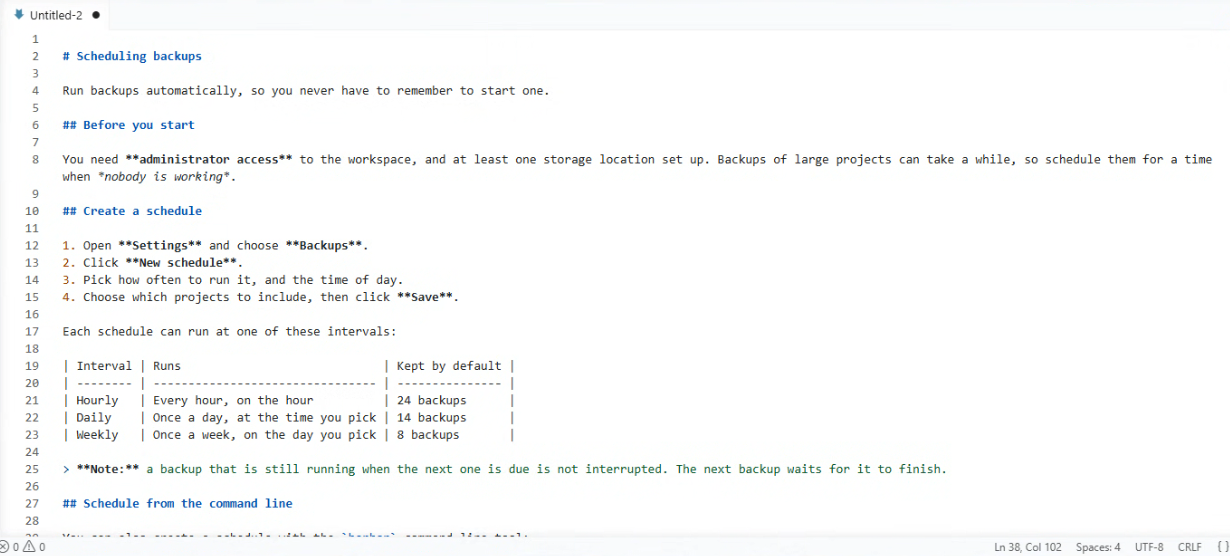
Copy part of a web page, a Word document or a Google Doc, then choose Transform > Markdown > Formatted text to Markdown.

The result as Markdown

Do more with Markdown

  • Remove Markdown formatting and Tidy Markdown.
  • Quote, Code blocks and Headings levels.
  • Tables: between Markdown, spreadsheet cells and CSV.
Transform QR 1.0
18 Oct 2026

NEW: make and read QR codes.

Turn copied text into a QR code

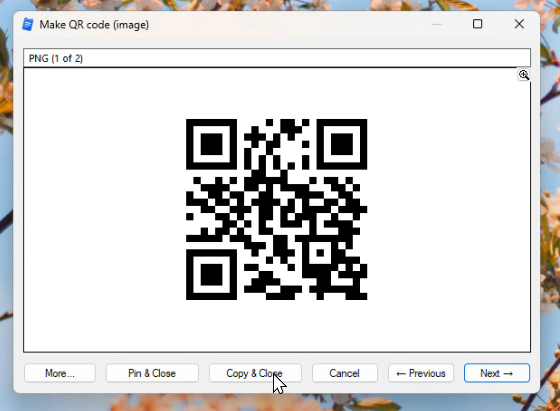
Copy a link or any text, choose Transform > QR Codes > Make QR code (image), and paste the code into a document, a slide or a chat.

A QR code made from copied text

Read a QR code from a picture

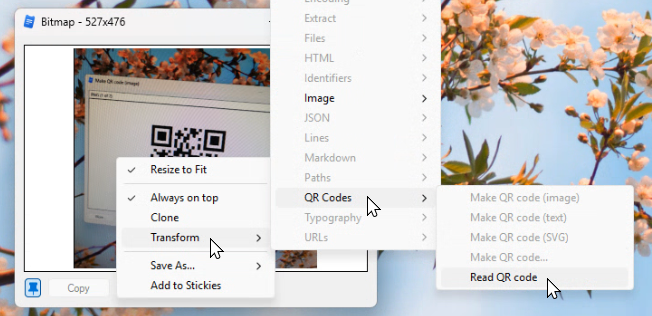
Copy a picture or a screenshot that holds a QR code, then choose Transform > QR Codes > Read QR code to get its text.

A QR code read back as text

Do more with QR codes

  • QR codes as text for chat and terminals, or as SVG for design tools.
  • Make QR code... chooses every option for one code, with a live preview.
  • Presets save sets of options, each with its own hotkey.