Beta release highlights

See also the full beta changelog for the nitty gritty.
For released versions, see the stable release highlights.
Follow betas with the RSS feed.

Characters 1.0beta1
8 Oct 2026

NEW: A plugin to pick any character, from accented letters and symbols to emoji, and paste it where you are typing in the format you need.

Find any character

Open the picker from the paste menu or with a hotkey, then search by name, keyword or code (U+2192, or 65 for A), or browse by topic.
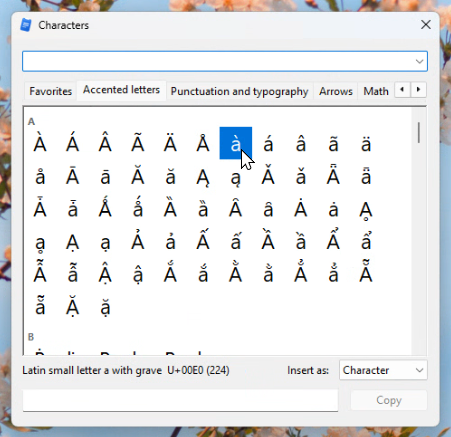
The Characters picker

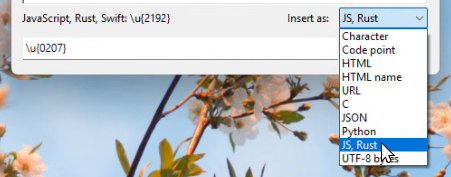
You can copy or paste in a variety of formats
Color emoji in the picker

Paste one, or several at once

Click a character, or press Enter, to collect it, then paste or copy everything you collected together. Hold Ctrl (or Shift) while you click or press Enter to paste a character right away.
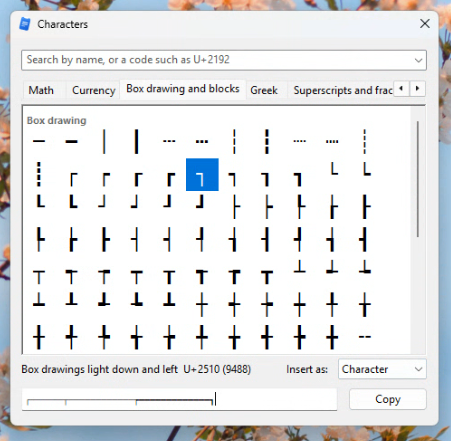
Collecting several characters

Emoji in color.

Emoji show in color on Windows 8.1 and later, including the ones made of several characters, if available on your system.
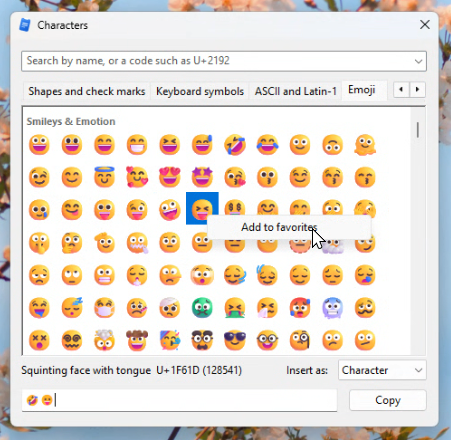
Color emoji in the picker

Do more with Characters

  • Favorites: right-click a character to add it to your favorites. The Favorites tab keeps them next to the characters you picked recently.
  • Insert as: insert a character's code instead of the character: its code point (U+2192), an HTML entity (→), URL encoding (%E2%86%92), or the escapes of popular programming languages (\u2192, \u{2192}).
  • Copy or Paste: choose Characters... copy from the tray menu into the clipboard, or pick a character to paste into your application directly from the paste menu. Assign separate hotkeys for copy or paste. The copy window stays open, so you can copy one character after another.
  • Settings: customize the starting tab, their order, the size of the characters in the picker, and more.
ClipX 2.0.1.0beta4
8 Oct 2026

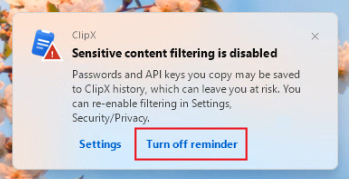
Turn off reminders that sensitive content detection is disabled

If you don't care about the safety, these reminders can be annoying. They can now be turned off (requires administrator priviledges so that this can't be abused by malwares).

Sensitive content disabled reminders can be turned off

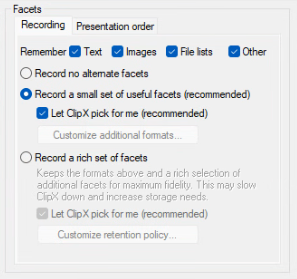
Choose your clipboard format retention policy

You can now choose one of 3 modes:

  • A basic mode, similar to ClipX 1.x, that only records plaintext, opaque images and filelists.
  • A mode that adds a small set of curated additional formats that add real value with only a small performance and memory/storage impact.
  • A rich facet mode for maximum fidelity, using customizable rules to choose which formats to keep or ignore, while still supporting unknown/generic formats.

The intermediate mode is the new default.

The recording modes on the Formats settings page

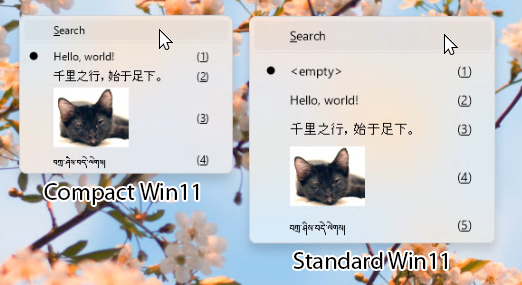
Compact Win11 menu is now enabled by default

History menus can get pretty tall, and the extra spacing in the standard Windows 11 menu layout makes this hard on smaller screens unless you select the Compact layout. This is now the default layout on Windows 11, and cvan be changed in the Settings > Theme page.

The compact menu layout is now default for Windows 11

Transform Colors 1.0beta1
8 Oct 2026

NEW: A Transform plugin to convert one or more colors from one format to another.

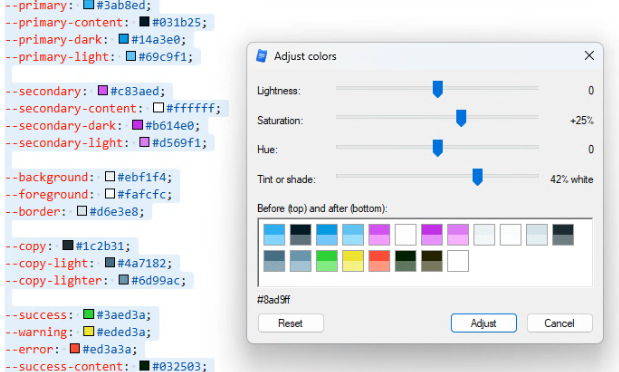
Adjust many colors at once

Copy a block of text with many colors, then select Transform > Colors > Adjust ...

Adjust many colors at once

Wide selection of color formats

Copy one color in any format:

#6495ED

... then Transform > Colors > List in all formats:

#6495ed
rgb(100 149 237)
rgb(100, 149, 237)
hsl(218.54 79.19% 66.08%)
hwb(218.54 39.22% 7.06%)
lab(61.23 3.05 -50.19)
lch(61.23 50.28 273.47)
oklab(0.67462 -0.02129 -0.13974)
oklch(0.67462 0.14136 261.34)
color(display-p3 0.4343 0.5792 0.9038)
cornflowerblue
Color(0xFF6495ED)
Color.FromArgb(100, 149, 237)
UIColor(red: 0.392, green: 0.584, blue: 0.929, alpha: 1)
Color(red: 0.392, green: 0.584, blue: 0.929)
new Color(0.392f, 0.584f, 0.929f)
vec4(0.392, 0.584, 0.929, 1.0)
RGB(100, 149, 237)
0x00ED9564

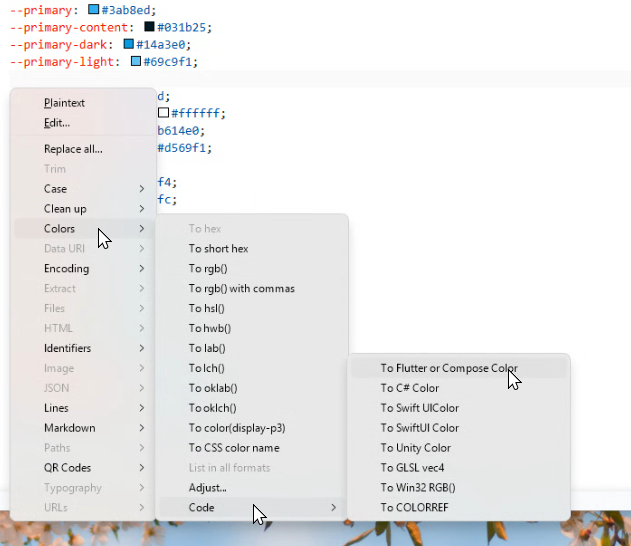
Transform to any format, including computer language representations:

TransformColors menu

Transform Files 1.0beta1
8 Oct 2026

NEW: A Transform plugin that acts on file(s) clipboards, or text clipboards with valid paths to files.

Turn a copied file into a clipboard of its content

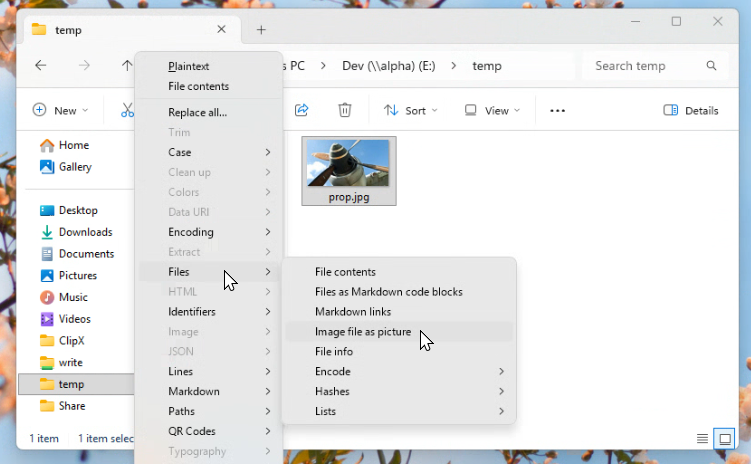
Select a file in Explorer, Copy it to the clipboard, then choose Transform > Files > Image file as picture ...

TransformFiles menu

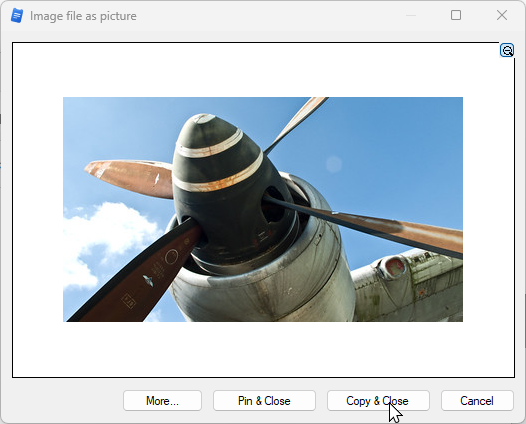
Copy from the transform preview:

TransformFiles preview

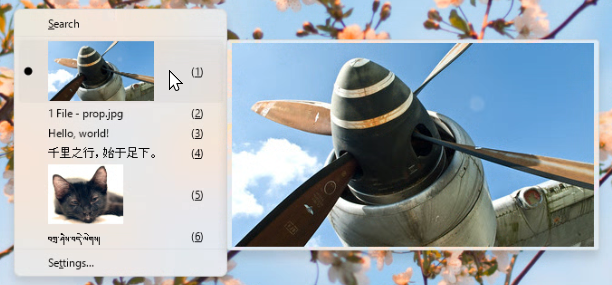
The image is now in your clipboard.

TransformFiles result in clipboard history

Do more with your file clipboards

  • File contents: the text content of one or more text files, each after its name.
  • Files as Markdown code blocks: each file's text content in a code block labeled with its language.
  • Markdown links: one link per copied file or folder.
  • Image file as picture: a copied PNG, JPEG, GIF, BMP or TIFF file becomes the picture itself.
  • File info: each file's folder, type, size, times and attributes, a picture's size and a program's version.
  • Encode: one file as Base64, or as a data URI.
  • Hashes: SHA-256, SHA-1, SHA-512 or MD5 of one or more files.
  • Lists: a folder listing as a tree, a file table, file names, relative paths, or the total size.

Paths copied as text can use a pattern, such as `C:\Notes\*.txt`, to take several files at once.

Transform Markdown 1.0beta1
8 Oct 2026

NEW: A Transform plugin for working with Markdown text.

Paste Markdown as formatted text

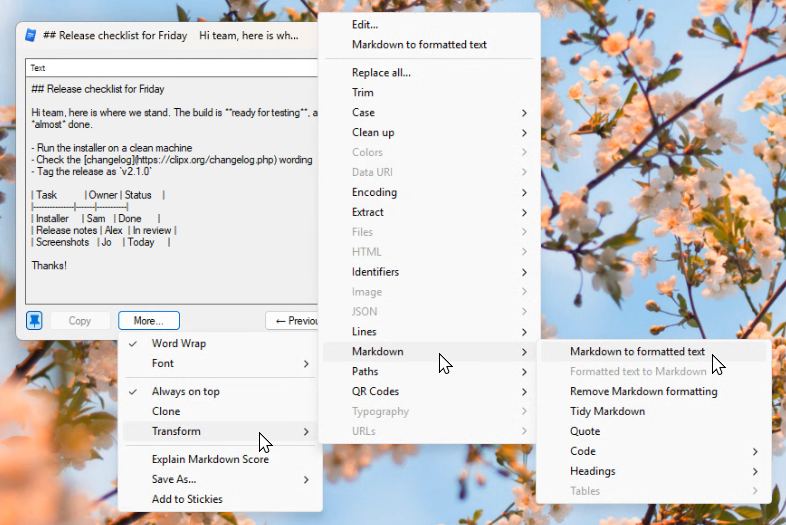
Copy Markdown, then choose Transform > Markdown to formatted text:

Markdown to formatted text menu

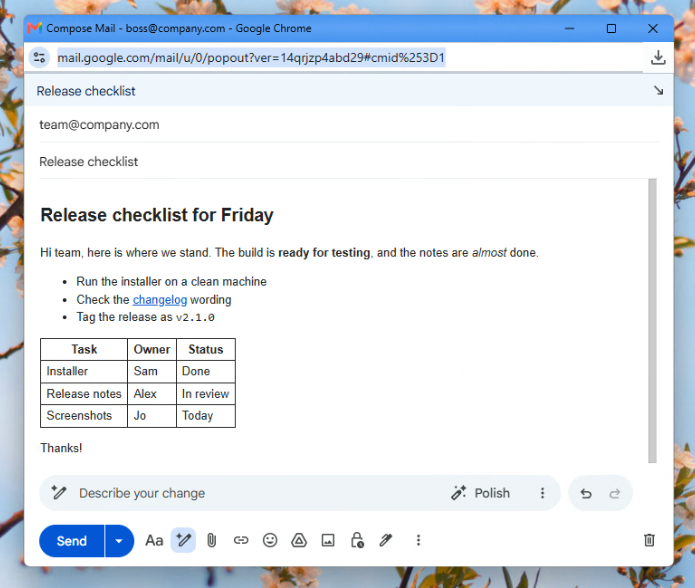
Paste the result into an email or any editor that takes formatted text, with its headings, bold, lists, links, tables, and code formatted:

Markdown to formatted text pasted in gmail

Turn a web page or document into Markdown

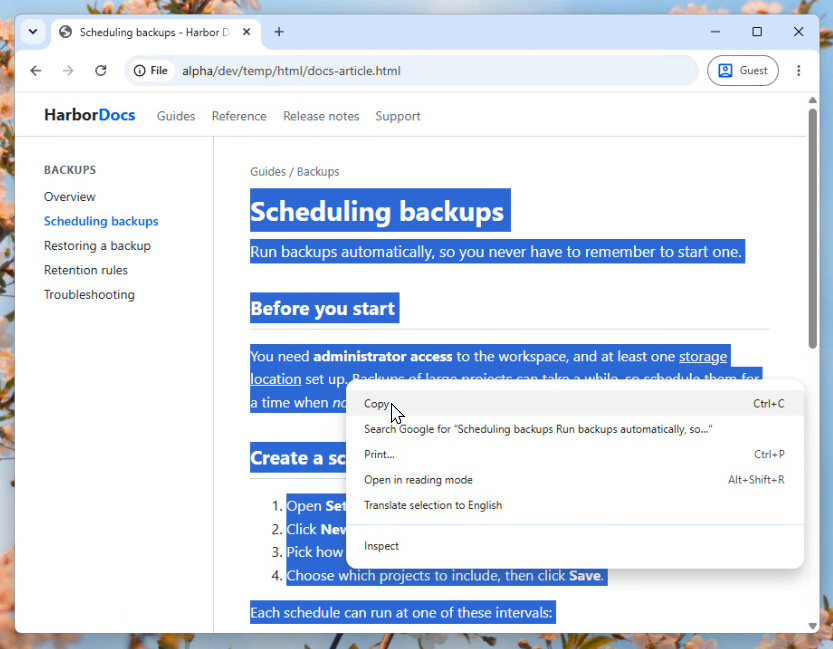
Copy part of a web page, a Word document, a Google Doc, or simply Text with HTML markup:

Initial HTML

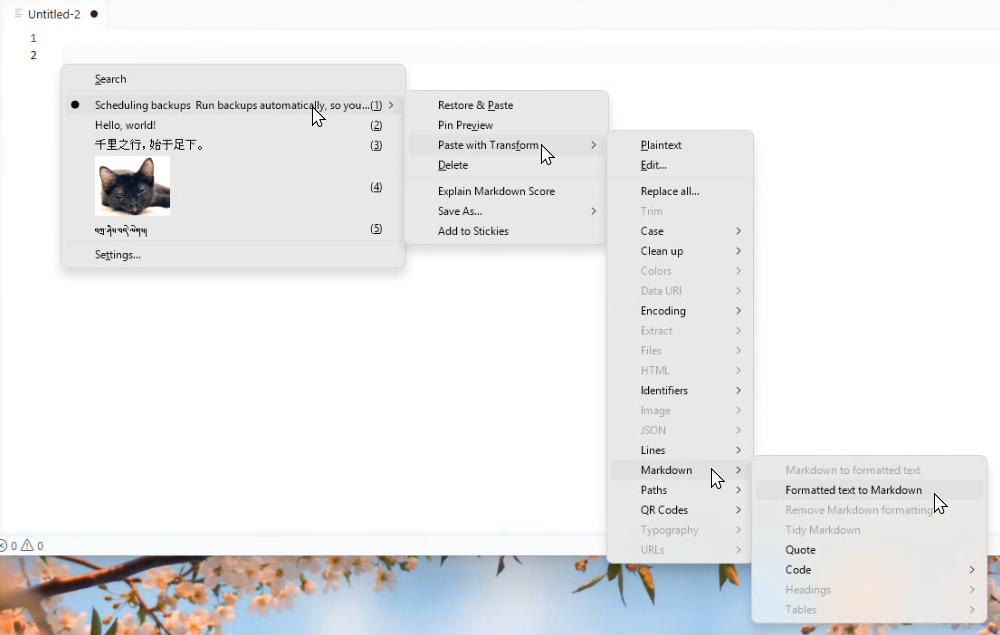
Then choose Transform > Markdown > Formatted text to Markdown:

Formatted text to Markdown menu

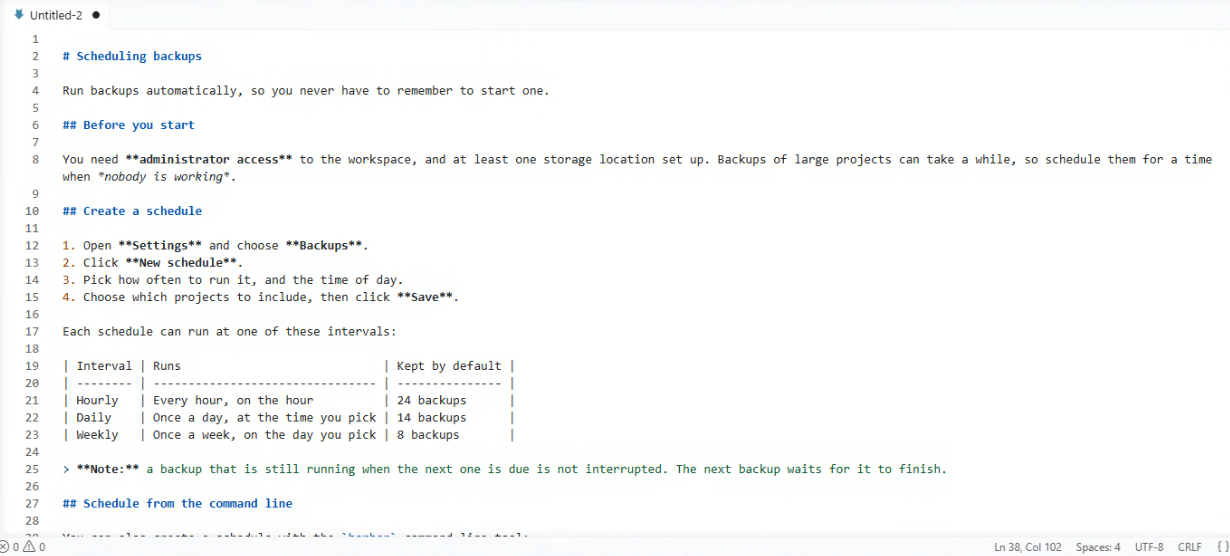
Paste the result, the headings, emphasis, links, lists, tables, and code come out as Markdown:

Formatted text to Markdown result

Do more with Markdown

  • Remove Markdown formatting: turns markdown into plain text where headings, lists, links, and tables read naturally.
  • Tidy Markdown: cleanup for consistent bullets and headings, lined-up tables, single blank lines, and no stray trailing spaces.
  • Quote: turns text into a Markdown quote.
  • Code: wrap text in a code block, or keep only the code blocks.
  • Headings: raise or lower every heading level, to move a section into another document.
  • Tables: copy cells from Excel or Google Sheets as a Markdown table, and back, or convert between CSV and Markdown tables.
Transform QR 1.0beta1
8 Oct 2026

NEW: A Transform plugin for making and reading QR codes.

Turn copied text into a QR code

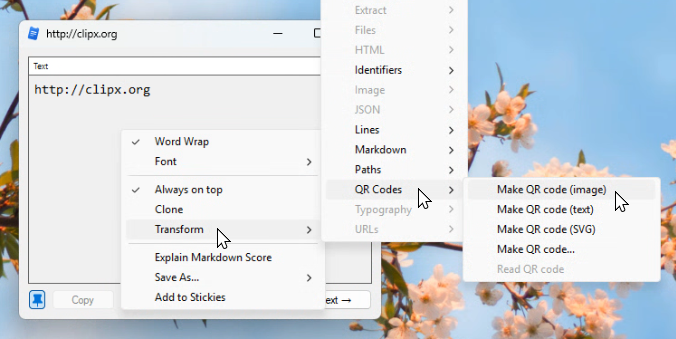
Copy a link or any text, then choose Transform > QR Codes > Make QR code (image).

Make QR code in the Transform menu

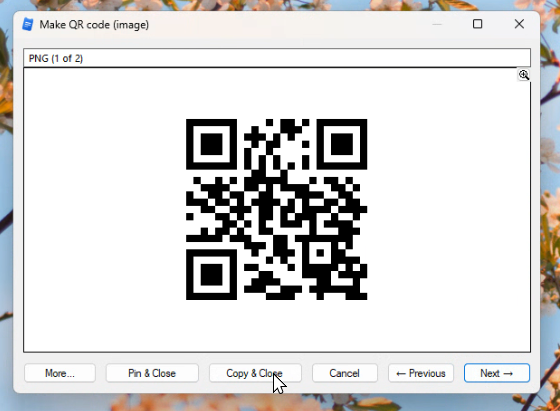
Paste the code into a document, a slide, or a chat:

The QR code

Read a QR code from a picture

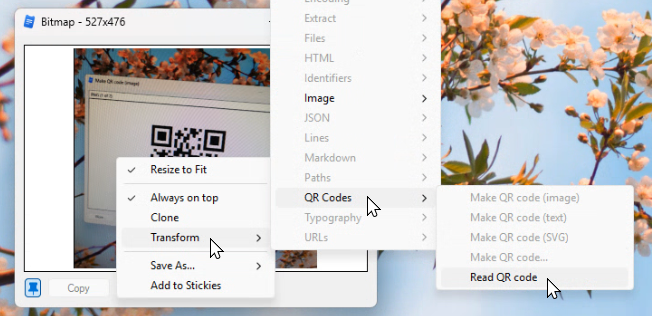
Copy a picture or a screenshot that holds a QR code, then choose Transform > QR Codes > Read QR code to get its text.

A QR code read back as text

Do more with QR codes

  • Make QR code (text): generate a QR code drawn with block characters, for chat and terminals.
  • Make QR code (SVG): generate SVG markup for design tools.
  • Make QR code...: choose the format and every option for one code, with a live preview.
  • Presets: save named sets of options, each with its own format and hotkey. Each preset appears in the QR Codes submenu.
  • Settings: the Transform QR settings page sets the error correction level, size, margin, colors, and a transparent background.
ClipX 2.0.1.0beta2
27 Sep 2026

Pinned previews

NEW: Pin any clipboard item or sticky in its own window, to keep it in view while you work. The same item may be opened many times, and is preserved even after it expires from your history.

New pinned preview window

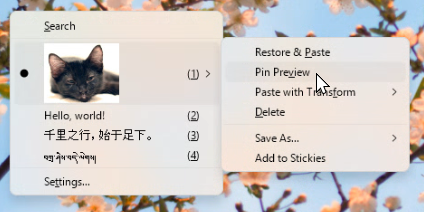
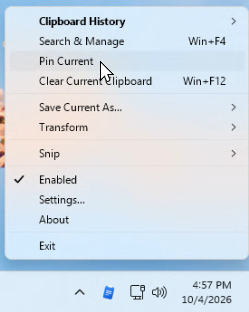
You can pin any history item using its right click menu, or the current item from the tray menu or a hotkey.

Pin from an item menu

Pin from the tray menu

Pinned windows support always-on-top, snapping to each other, automatic placement, and can be moved in groups (hold Ctrl while moving). They also offer transforms and plugin actions.

Transform Again and Edit in Transform Previews

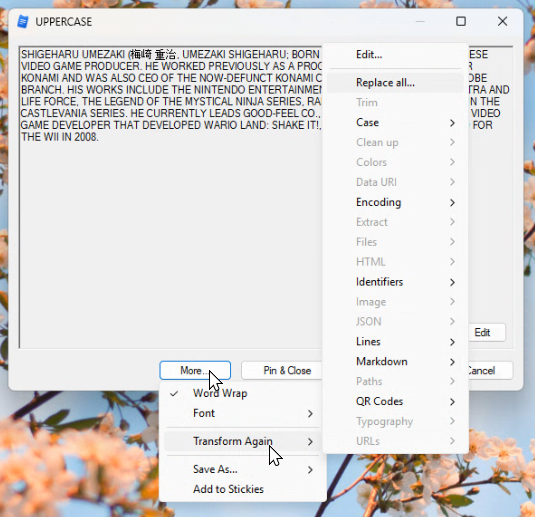
The Transform preview now allows chaining transforms.

Transform again

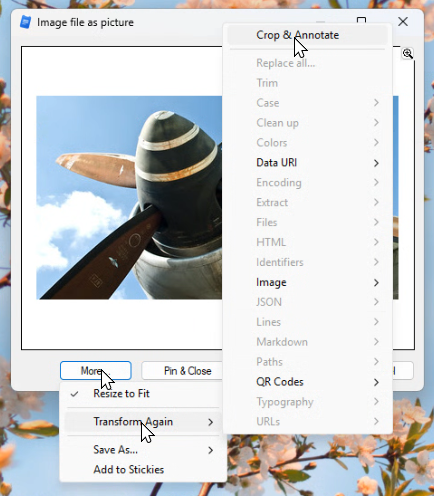
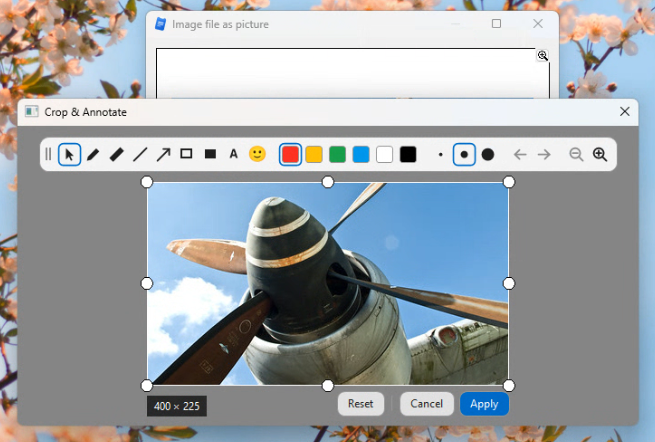
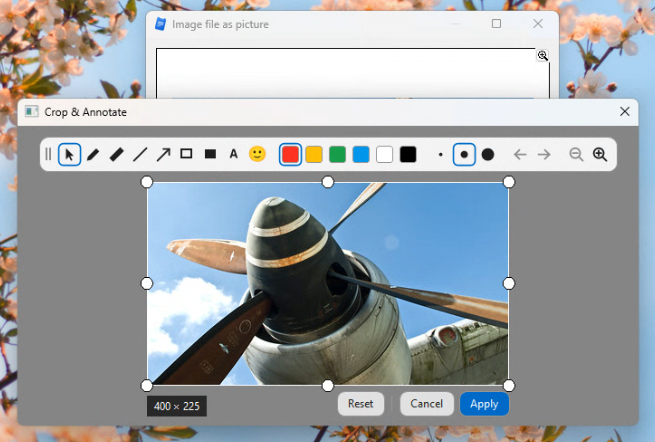
Text entries can be edited inside the preview, image entries can be cropped and annotated (requires the Snip plugin). Transform results can be pinned like history entries, without having to copy them into the history.

Transform again with Crop and Annotate

Cropping the result of the transform

Drag and Drop in menus

You can now reorder your history items, and even copy them to your Stickies or from a Shared peer history to your own, simply using Drag & Drop.

Drag and drop in menus

Keep the menu open during item management

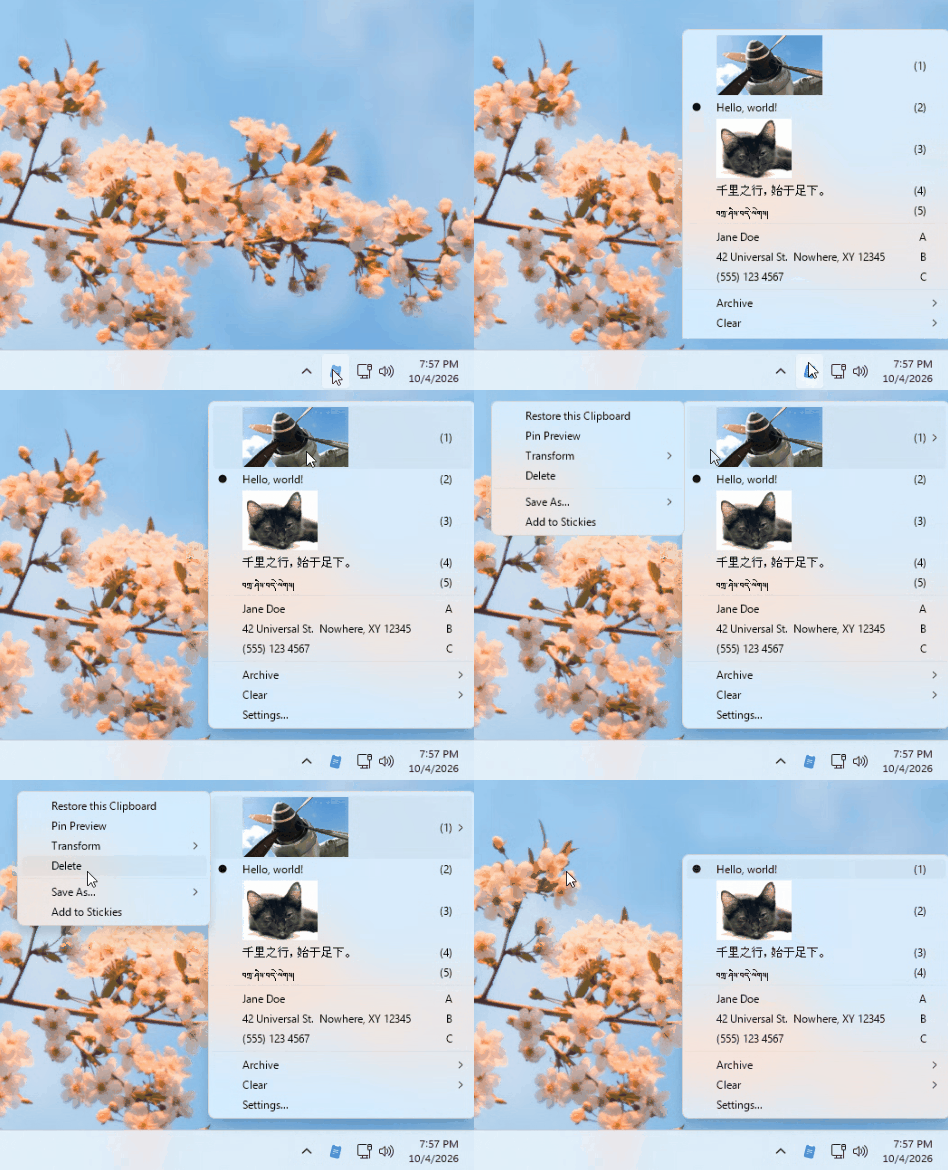
The menu now stays open during common item management operations, such as when you Right-Click on an item and choose Delete

Deleting an item

Undo Clear Current

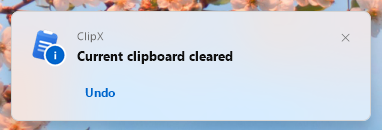
You can now undo the clearing of the current clipboard. The grace period can be customized.

Undo clear current

Encrypt exported history

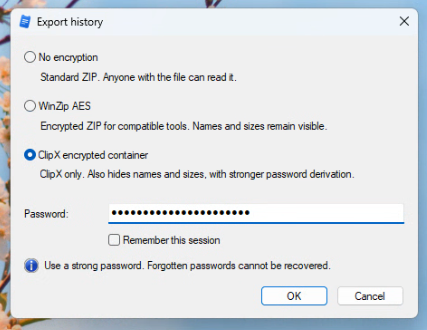
Exporting your history or your Stickies can now encrypt the archive.

Encrypt exports

Betas in Plugin Browser

You can now browse beta plugins from the plugins browser in Settings > More Plugins...

Plugins browser shows betas

More Formats 1.1beta2
27 Sep 2026

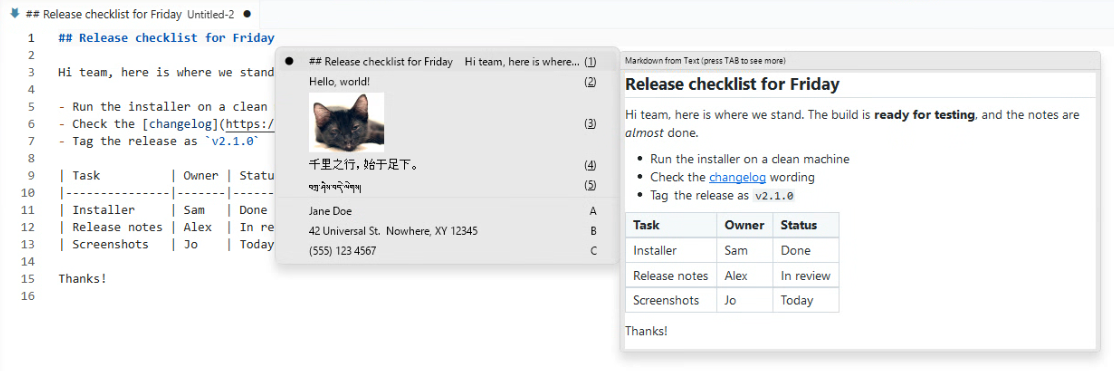
Copied Markdown now renders in previews

ClipX now renders rich previews when copied text contains markdown. Press TAB to switch back to the standard text content.

Rendering markdown from text

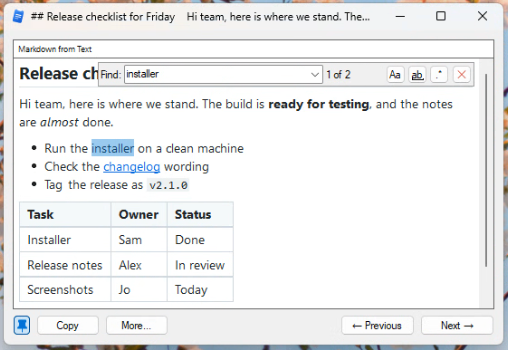
Scroll, Search, Select, Copy in formatted text previews

HTML, RTF and Markdown previews can now be fully rendered, scrolled and resized inside of the new Pinned preview windows, with support for Search, Select and Copy.

HTML and markdown search

Stickies 1.11beta3
27 Sep 2026

Record any clipboard type as a Sticky

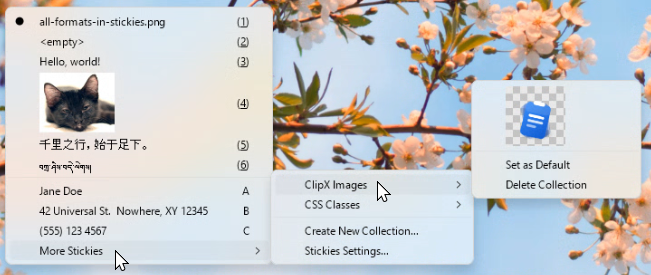
Stickies now supports saving any clipboard type, including images, HTML, files, etc. The menu shows a preview of your sticky on hover and Right-Click opens a per-sticky contextual menu, just like history menu items.

All formats in Stickies

Stickies Collections

Organize your stickies into Collections, quickly switch from one collection to another, and drag and drop items between collections.

Stickies collections

Secure Stickies Archives

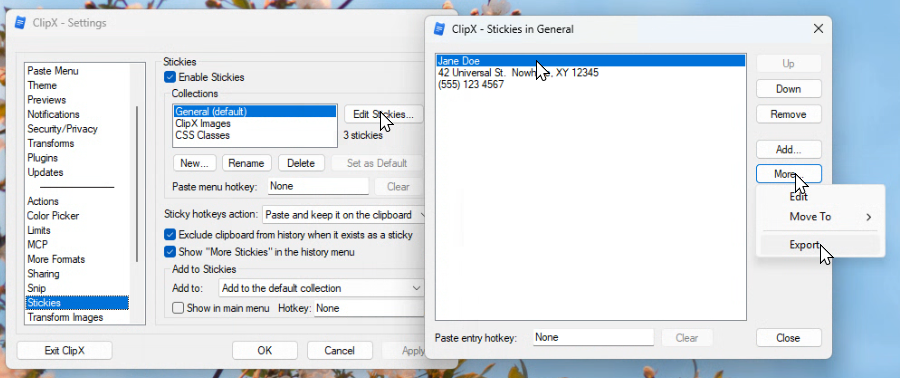
Export your collections as a ClipX archive, with the same encryption options as ClipX history exports.

Stickies export

ClipX 2.0.1.0beta1
7 Sep 2026

Transform clipboard content

The newly introduced Transform plugins can take your clipboard as an input, and produce a new clipboard. For instance Snip now exposes a Transform to Crop and Annotate any copied image

Crop and annotate an image clipboard

A new set of dedicated transform plugins provide useful primitives, they are available in beta:

  • TransformText: simple text operations (search & replace, change case, unwrap, collapse spaces etc)
  • TransformImages: image operations (rotate, flip, custom resizes)
  • TransformCode: code-related operations (base64, json, hex, sort, dedup, indent, etc.)
  • TransformToDataURI: turn images to data URIs (png, jpg, html img tags)
  • TransformWithRegex: create custom multi-regex based text transforms
  • TransformOCR: simple image to text conversion (uses the Windows OCR module, requires Win10+)